Introduction to CKAN and Docker on Mac
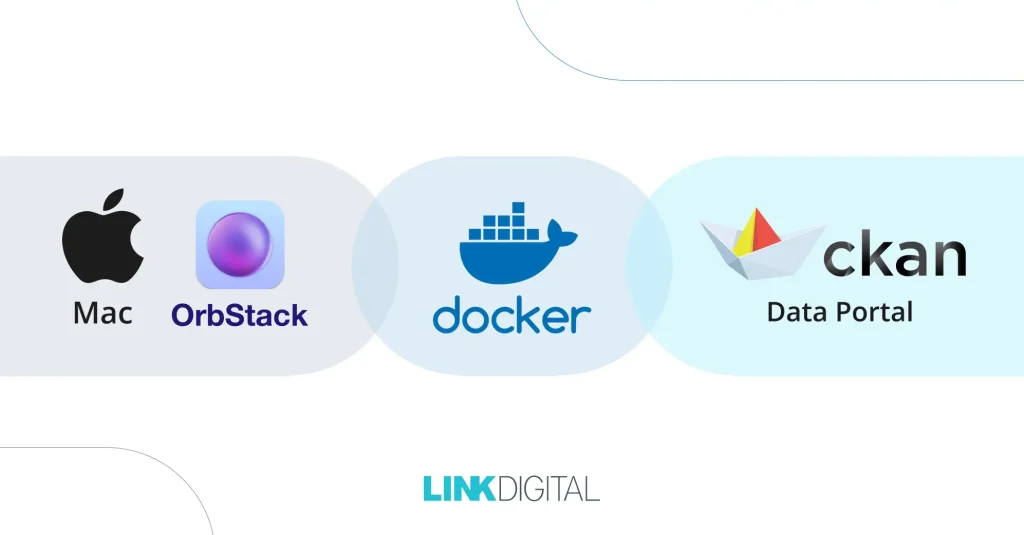
If you’re a developer or data enthusiast looking to run the Comprehensive Knowledge Archive Network (CKAN) data repository platform on your Mac, using Docker is one of the best ways to manage the environment. However, traditional Docker Desktop apps can be resource-heavy, slowing down your machine. This guide walks you through a streamlined way to install and run CKAN using OrbStack, a lightweight Docker management tool optimised for Mac, especially those with the Apple Silicon M2 chip.
Why use OrbStack instead of Docker Desktop?
Heavy resource usage of Docker Desktop
Docker Desktop, while popular, can put a significant load on your central processing unit and memory, particularly on Macs with limited resources. Many users find their systems grind to a halt during heavy container builds or when multiple images are running.
Orbstack: a lightweight alternative
OrbStack offers an efficient way to run Docker containers without the bloat. It integrates well with macOS, supports Apple Silicon processors natively, and provides a clean, user-friendly interface to manage containers, volumes, images, and networks without taxing your system. This makes it ideal for running complex stacks like CKAN with better performance.
Prerequisites for Installing CKAN on Mac with OrbStack
Before starting, ensure you have the following:
- A Mac with Apple Silicon (M1 or M2) or Intel processor
- macOS updated (This tutorial is tested on 2023 Mac Mini with macOS 26.3.1 -Tahoe)
- Terminal app (default macOS Terminal works fine)
- Visual Studio Code (VS Code) or any text editor for editing Docker compose files
- OrbStack installed (free version available with optional Pro trial)
- Basic familiarity with Docker and command-line operations
Step-by-step Guide to installing CKAN using Docker and OrbStack
1. Setting up Orbstack on your Mac
Download and install OrbStack from the official website. Once installed, open the OrbStack app to familiarise yourself with the interface. You will see tabs for containers, volumes, images, and networks.
2. Preparing the CKAN Docker Repository
Download the latest CKAN Docker repository. At the time of writing, CKAN version 2.11 is current, with 2.12 expected soon. Extract the files and open the directory in VS Code or your preferred editor.
3. Configuring Docker Compose for Apple Silicon
In this tutorial, I use Apple’s M2 chip, I specified the platform architecture in the Docker Compose file to avoid compatibility issues.
Add the following line directly under the CKAN service in your docker-compose.yaml file:
ckan:
  platform: linux/amd64
  build
  ...
This ensures that the containers run under the AMD64 architecture, which is compatible with the CKAN images.
4. Creating the environment file
Create your .env file by copying the example provided in the repository:
Shell
cp .env.example .envEdit this file if needed to set environment variables such as ports, passwords, or paths.
5. Building Docker images
Open Terminal and navigate to the CKAN directory. Run the following command to build all required images:
Shell
docker compose buildThis process will compile the database, EngineX, and other necessary images for the CKAN environment.
6. Starting containers and pulling additional images
Run the containers with:
Shell
docker compose up -dThis command pulls required images like Solr Radius and Data Pusher and starts the containers in detached mode. Be patient, as pulling images might take a few minutes, depending on your internet speed.
7. Monitoring Containers in OrbStack
Open OrbStack and navigate to the Containers tab. You should see containers for CKAN services starting up, including the database, Nginx, Data Pusher, and Solr Radius. OrbStack also shows volumes and networks created automatically.
8. Initialising the CKAN environment
Wait for Data Pusher and CKAN to initialise fully. The EngineX container starts last after the other containers are ready. You can view logs in OrbStack or via terminal to verify that services are running without errors.
Accessing and using CKAN on your Mac
1. Accessing the web interface
Once the containers are running, open your browser and navigate to:
https://localhost:8443You may encounter a security warning due to the self-signed SSL certificate. Proceed by accepting the risk (this is normal for local development).
2. Logging into CKAN
Use the default admin credentials (set in your .env or Docker Compose file) to log in.
3. Creating an organisation and adding datasets
- Create a new organisation, e.g., “TestOrg”
- Add a dataset, for example, “Testset1” and mark it public or private as needed
- Link a URL to a CSV file containing dataset information
4. Uploading and viewing data
CKAN automatically parses the CSV headers and imports data into the database. You can monitor progress via logs. For example, uploading a 20,000+ row dataset should complete smoothly, confirming that your setup is working correctly.
The benefits of running CKAN with OrbStack on Mac
Open source and cost free
CKAN is fully open-source, and using OrbStack’s free tier means no licensing fees or hidden costs.
Lightweight and efficient
OrbStack’s design minimises CPU and memory usage compared to Docker Desktop, leaving your Mac responsive during Docker operations.
Easy to install and configure
With straightforward Docker Compose files and minimal edits needed for Apple Silicon compatibility, setup is quick even for users new to Docker.
Robust container management
OrbStack’s interface simplifies monitoring, starting, stopping, and logging containers, volumes, and networks.
Here are the common issues I encountered and here’s how to fix them
- Issue 1: Docker Compose build fails on M2 Mac
- The fix: Ensure you specify platform: linux/amd64 in your Docker Compose file under the CKAN service to force compatibility.
- Issue 2: SSL warning in browser
- The fix: This is expected for local self-signed certificates. Accept the warning or add exceptions in your browser.
- Issue 3: Containers not starting or stuck initialising
- The fix: Check logs in OrbStack or terminal with docker compose logs. Verify ports in .env don’t conflict with other services.
Final thoughts
Installing CKAN using Docker on a Mac has never been simpler or more efficient, thanks to OrbStack. This lightweight Docker management tool significantly reduces resource consumption while providing an intuitive interface. Whether you’re running a new Apple Silicon Mac or an Intel-based machine, this method ensures a consistent setup of CKAN for data management and analysis.
CKAN’s open-source nature means you can deploy powerful data repositories without cost, and with Docker and OrbStack, you gain flexibility and control over your development environment. Try this approach and enjoy a fast, hassle-free Docker experience on macOS.
Does your team need experts to update your CKAN portal? Message Link Digital.
Read more tutorials from Brett Jones here.